Authoring Professional Documents in Markdown
Graphical editors like Microsoft Word can be very convenient, but they become very unpleasant to use when you need to write large numbers of mathematical formulas. Most professional mathematicians and computer scientists use a typesetting language like Markdown or LaTeX.
- Historically, LaTeX has been used more widely in mathematics
- Recent Federal laws require the use of accessible documents in teaching at state universities
- LaTeX does not produce accessible output
Markdown has several benefits
- It is easier to write and read than LaTeX
- It can easily be compiled to accessible HTML using existing compliers like Pandoc
For example, in Markdown you can create a nicely formatted document by putting the following in a file called Sample.md
# Welcome to Math 161

## Class Information
- **Instructor:** Stephen Flood
- **Office:** DMF 443
- **Textbook:** select one of the following
    - [OpenStax Calculus Volume 1](https://openstax.org/books/calculus-volume-1)
    - [Stewart Calculus](https://www.amazon.com/Calculus-Early-Transcendentals-James-Stewart/dp/1337613924)
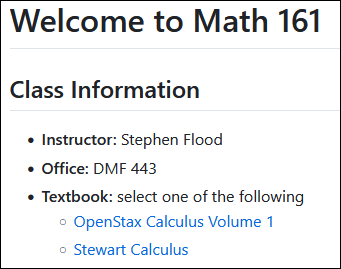
If you use a program like Pandoc, you will be able to compile your document into a nicely formatted and accessible html file that is easily shared.
Previewing Markdown Online
- There are many markdown previewers online.
- Digital Ocean provides one at https://www.digitalocean.com/community/markdown
WARNING:
- Online Preview Websites do NOT save your work
- Author your document on your computer to avoid losing your work
- Online sites may also save your data and sell/train AI on it.
Downloading a Markdown Editor
VS Code is a powerful text editor for computer programming.
As an added bonus, it has a built in Markdown Previewer.
- Download and install VS Code
- Open VS Code
- create and save a markdown file.
- Open the Previewer one of two ways
- Type
Ctr-K, release the keys, then typeV - At the top of the window, mouse over the images to find the button that says Open Previewer to the Side
- Type
Basic Markdown Syntax
Here are some markdown basics:
#begins a section heading##begins a sub-section heading- emphasize text between a pair of
*, usually by putting it in italics - bold text between a pair of
** - bold and italics text between a pair of
***
# Section
## Subsection
*italics*
**bold**
***bold and italics***
Paragraph Structure
Key Concept:
Include a blank line to start a new paragraph.
This is a sentence.
This sentence is in the same paragraph.

This sentence will start a new paragraph.
This will be in the second paragraph.
New lines will not (usually) start a new paragraph. You can use this to help organize your thoughts.
Unexpected output?
Small changes in your Markdown code can cause big, unexpected changes in the output. Here are quick solutions to a few common problems.
-
Unexpected line breaks? Two or more spaces at the end of a line will cause a line break, but not start a new paragraph. If you are getting newlines where you don't want them, check the end of the line for extra spaces.
-
Unexpected blocks of unformatted text? Do not use indentation except for Markdown formatting. Indenting text by four extra spaces or one extra tab will make Markdown interpret your text as a code block (see below).
Making Lists
You can easily make itemized lists (not numbered as follows).
Here is a list of several items

- Item 1
- Item 2
- Item 3
IMPORTANT:
- There must be one blank line before the first list item.
- If the blank line is missing, some viewers will typeset the list correctly, and others will treat it as a paragraph and you will see something like the following.
Here is a list of several items - Item 1 - Item 2 - Item 3.
If that happens, keep add a blank before the first list item. - When you have multiple, nested list, you may need to have blank lines before and after every list item.
You can also make a numbered list as follows
Here is a list of several items

1. First item
2. Another item
3. Still more items
You can also make nested lists by indenting the sub-list
There are many ways to write documents

- Microsoft word is one
    - What you see is what you get
    - But you need to click a lot of buttons
- LaTeX is another
    - It creates beautiful PDF documents
    - But these are not always accessible
- Markdown is a third
    - It is very easy to read and write
    - But it is less obvious how to share it
Using Math in Markdown
Although LaTeX is not part of the Markdown language, most Markdown viewers can display mathematical formulas using a tool/library called MathJax.
Suppose I want to type in a mathematical formula such as the following \[\int\dfrac{1}{x} dx = \ln(x) + C\]
Just like in normal LaTeX, you just enclose your text with a pair of $ or $$ signs.
For an inline formula, use single dollar signs.
 For a display mode formula, use double dollar signs.
This is pdfTeX, Version 3.141592653-2.6-1.40.28 (MiKTeX 25.12) (preloaded format=pdflatex.fmt)
 restricted \write18 enabled.
entering extended mode
(x.tex
LaTeX2e <2025-11-01>
L3 programming layer <2025-12-29>

(C:\Users\sflood\AppData\Local\Programs\MiKTeX\tex/latex/standalone\standalone.
cls
Document Class: standalone 2025/02/22 v1.5a Class to compile TeX sub-files stan
dalone
(C:\Users\sflood\AppData\Local\Programs\MiKTeX\tex/latex/tools\shellesc.sty)
(C:\Users\sflood\AppData\Local\Programs\MiKTeX\tex/generic/iftex\ifluatex.sty
(C:\Users\sflood\AppData\Local\Programs\MiKTeX\tex/generic/iftex\iftex.sty))
(C:\Users\sflood\AppData\Local\Programs\MiKTeX\tex/latex/xkeyval\xkeyval.sty
(C:\Users\sflood\AppData\Local\Programs\MiKTeX\tex/generic/xkeyval\xkeyval.tex
(C:\Users\sflood\AppData\Local\Programs\MiKTeX\tex/generic/xkeyval\xkvutils.tex
(C:\Users\sflood\AppData\Local\Programs\MiKTeX\tex/generic/xkeyval\keyval.tex))
))
(C:\Users\sflood\AppData\Local\Programs\MiKTeX\tex/latex/standalone\standalone.
cfg) (C:\Users\sflood\AppData\Local\Programs\MiKTeX\tex/latex/base\article.cls
Document Class: article 2025/01/22 v1.4n Standard LaTeX document class
(C:\Users\sflood\AppData\Local\Programs\MiKTeX\tex/latex/base\size10.clo)))
(C:\Users\sflood\AppData\Local\Programs\MiKTeX\tex/latex/pgf/frontendlayer\tikz
.sty
(C:\Users\sflood\AppData\Local\Programs\MiKTeX\tex/latex/pgf/basiclayer\pgf.sty

(C:\Users\sflood\AppData\Local\Programs\MiKTeX\tex/latex/pgf/utilities\pgfrcs.s
ty
(C:\Users\sflood\AppData\Local\Programs\MiKTeX\tex/generic/pgf/utilities\pgfuti
l-common.tex)
(C:\Users\sflood\AppData\Local\Programs\MiKTeX\tex/generic/pgf/utilities\pgfuti
l-latex.def)
(C:\Users\sflood\AppData\Local\Programs\MiKTeX\tex/generic/pgf/utilities\pgfrcs
.code.tex
(C:\Users\sflood\AppData\Local\Programs\MiKTeX\tex/generic/pgf\pgf.revision.tex
)))
(C:\Users\sflood\AppData\Local\Programs\MiKTeX\tex/latex/pgf/basiclayer\pgfcore
.sty
(C:\Users\sflood\AppData\Local\Programs\MiKTeX\tex/latex/graphics\graphicx.sty
(C:\Users\sflood\AppData\Local\Programs\MiKTeX\tex/latex/graphics\graphics.sty
(C:\Users\sflood\AppData\Local\Programs\MiKTeX\tex/latex/graphics\trig.sty)
(C:\Users\sflood\AppData\Local\Programs\MiKTeX\tex/latex/graphics-cfg\graphics.
cfg)
(C:\Users\sflood\AppData\Local\Programs\MiKTeX\tex/latex/graphics-def\pdftex.de
f)))
(C:\Users\sflood\AppData\Local\Programs\MiKTeX\tex/latex/pgf/systemlayer\pgfsys
.sty
(C:\Users\sflood\AppData\Local\Programs\MiKTeX\tex/generic/pgf/systemlayer\pgfs
ys.code.tex
(C:\Users\sflood\AppData\Local\Programs\MiKTeX\tex/generic/pgf/utilities\pgfkey
s.code.tex
(C:\Users\sflood\AppData\Local\Programs\MiKTeX\tex/generic/pgf/utilities\pgfkey
slibraryfiltered.code.tex))
(C:\Users\sflood\AppData\Local\Programs\MiKTeX\tex/generic/pgf/systemlayer\pgf.
cfg)
(C:\Users\sflood\AppData\Local\Programs\MiKTeX\tex/generic/pgf/systemlayer\pgfs
ys-pdftex.def
(C:\Users\sflood\AppData\Local\Programs\MiKTeX\tex/generic/pgf/systemlayer\pgfs
ys-common-pdf.def)))
(C:\Users\sflood\AppData\Local\Programs\MiKTeX\tex/generic/pgf/systemlayer\pgfs
yssoftpath.code.tex)
(C:\Users\sflood\AppData\Local\Programs\MiKTeX\tex/generic/pgf/systemlayer\pgfs
ysprotocol.code.tex))
(C:\Users\sflood\AppData\Local\Programs\MiKTeX\tex/latex/xcolor\xcolor.sty
(C:\Users\sflood\AppData\Local\Programs\MiKTeX\tex/latex/graphics-cfg\color.cfg
)
(C:\Users\sflood\AppData\Local\Programs\MiKTeX\tex/latex/graphics\mathcolor.ltx
))
(C:\Users\sflood\AppData\Local\Programs\MiKTeX\tex/generic/pgf/basiclayer\pgfco
re.code.tex
(C:\Users\sflood\AppData\Local\Programs\MiKTeX\tex/generic/pgf/math\pgfmath.cod
e.tex
(C:\Users\sflood\AppData\Local\Programs\MiKTeX\tex/generic/pgf/math\pgfmathutil
.code.tex)
(C:\Users\sflood\AppData\Local\Programs\MiKTeX\tex/generic/pgf/math\pgfmathpars
er.code.tex)
(C:\Users\sflood\AppData\Local\Programs\MiKTeX\tex/generic/pgf/math\pgfmathfunc
tions.code.tex)
(C:\Users\sflood\AppData\Local\Programs\MiKTeX\tex/generic/pgf/math\pgfmathfunc
tions.basic.code.tex)
(C:\Users\sflood\AppData\Local\Programs\MiKTeX\tex/generic/pgf/math\pgfmathfunc
tions.trigonometric.code.tex)
(C:\Users\sflood\AppData\Local\Programs\MiKTeX\tex/generic/pgf/math\pgfmathfunc
tions.random.code.tex)
(C:\Users\sflood\AppData\Local\Programs\MiKTeX\tex/generic/pgf/math\pgfmathfunc
tions.comparison.code.tex)
(C:\Users\sflood\AppData\Local\Programs\MiKTeX\tex/generic/pgf/math\pgfmathfunc
tions.base.code.tex)
(C:\Users\sflood\AppData\Local\Programs\MiKTeX\tex/generic/pgf/math\pgfmathfunc
tions.round.code.tex)
(C:\Users\sflood\AppData\Local\Programs\MiKTeX\tex/generic/pgf/math\pgfmathfunc
tions.misc.code.tex)
(C:\Users\sflood\AppData\Local\Programs\MiKTeX\tex/generic/pgf/math\pgfmathfunc
tions.integerarithmetics.code.tex)
(C:\Users\sflood\AppData\Local\Programs\MiKTeX\tex/generic/pgf/math\pgfmathcalc
.code.tex)
(C:\Users\sflood\AppData\Local\Programs\MiKTeX\tex/generic/pgf/math\pgfmathfloa
t.code.tex))
(C:\Users\sflood\AppData\Local\Programs\MiKTeX\tex/generic/pgf/math\pgfint.code
.tex)
(C:\Users\sflood\AppData\Local\Programs\MiKTeX\tex/generic/pgf/basiclayer\pgfco
repoints.code.tex)
(C:\Users\sflood\AppData\Local\Programs\MiKTeX\tex/generic/pgf/basiclayer\pgfco
repathconstruct.code.tex)
(C:\Users\sflood\AppData\Local\Programs\MiKTeX\tex/generic/pgf/basiclayer\pgfco
repathusage.code.tex)
(C:\Users\sflood\AppData\Local\Programs\MiKTeX\tex/generic/pgf/basiclayer\pgfco
rescopes.code.tex)
(C:\Users\sflood\AppData\Local\Programs\MiKTeX\tex/generic/pgf/basiclayer\pgfco
regraphicstate.code.tex)
(C:\Users\sflood\AppData\Local\Programs\MiKTeX\tex/generic/pgf/basiclayer\pgfco
retransformations.code.tex)
(C:\Users\sflood\AppData\Local\Programs\MiKTeX\tex/generic/pgf/basiclayer\pgfco
requick.code.tex)
(C:\Users\sflood\AppData\Local\Programs\MiKTeX\tex/generic/pgf/basiclayer\pgfco
reobjects.code.tex)
(C:\Users\sflood\AppData\Local\Programs\MiKTeX\tex/generic/pgf/basiclayer\pgfco
repathprocessing.code.tex)
(C:\Users\sflood\AppData\Local\Programs\MiKTeX\tex/generic/pgf/basiclayer\pgfco
rearrows.code.tex)
(C:\Users\sflood\AppData\Local\Programs\MiKTeX\tex/generic/pgf/basiclayer\pgfco
reshade.code.tex)
(C:\Users\sflood\AppData\Local\Programs\MiKTeX\tex/generic/pgf/basiclayer\pgfco
reimage.code.tex)
(C:\Users\sflood\AppData\Local\Programs\MiKTeX\tex/generic/pgf/basiclayer\pgfco
reexternal.code.tex)
(C:\Users\sflood\AppData\Local\Programs\MiKTeX\tex/generic/pgf/basiclayer\pgfco
relayers.code.tex)
(C:\Users\sflood\AppData\Local\Programs\MiKTeX\tex/generic/pgf/basiclayer\pgfco
retransparency.code.tex)
(C:\Users\sflood\AppData\Local\Programs\MiKTeX\tex/generic/pgf/basiclayer\pgfco
repatterns.code.tex)
(C:\Users\sflood\AppData\Local\Programs\MiKTeX\tex/generic/pgf/basiclayer\pgfco
rerdf.code.tex)))
(C:\Users\sflood\AppData\Local\Programs\MiKTeX\tex/generic/pgf/modules\pgfmodul
eshapes.code.tex)
(C:\Users\sflood\AppData\Local\Programs\MiKTeX\tex/generic/pgf/modules\pgfmodul
eplot.code.tex)
(C:\Users\sflood\AppData\Local\Programs\MiKTeX\tex/latex/pgf/compatibility\pgfc
omp-version-0-65.sty)
(C:\Users\sflood\AppData\Local\Programs\MiKTeX\tex/latex/pgf/compatibility\pgfc
omp-version-1-18.sty))
(C:\Users\sflood\AppData\Local\Programs\MiKTeX\tex/latex/pgf/utilities\pgffor.s
ty
(C:\Users\sflood\AppData\Local\Programs\MiKTeX\tex/latex/pgf/utilities\pgfkeys.
sty
(C:\Users\sflood\AppData\Local\Programs\MiKTeX\tex/generic/pgf/utilities\pgfkey
s.code.tex))
(C:\Users\sflood\AppData\Local\Programs\MiKTeX\tex/latex/pgf/math\pgfmath.sty
(C:\Users\sflood\AppData\Local\Programs\MiKTeX\tex/generic/pgf/math\pgfmath.cod
e.tex))
(C:\Users\sflood\AppData\Local\Programs\MiKTeX\tex/generic/pgf/utilities\pgffor
.code.tex))
(C:\Users\sflood\AppData\Local\Programs\MiKTeX\tex/generic/pgf/frontendlayer/ti
kz\tikz.code.tex
(C:\Users\sflood\AppData\Local\Programs\MiKTeX\tex/generic/pgf/libraries\pgflib
raryplothandlers.code.tex)
(C:\Users\sflood\AppData\Local\Programs\MiKTeX\tex/generic/pgf/modules\pgfmodul
ematrix.code.tex)
(C:\Users\sflood\AppData\Local\Programs\MiKTeX\tex/generic/pgf/frontendlayer/ti
kz/libraries\tikzlibrarytopaths.code.tex)))
(C:\Users\sflood\AppData\Local\Programs\MiKTeX\tex/generic/pgf/frontendlayer/ti
kz/libraries\tikzlibraryshapes.geometric.code.tex
(C:\Users\sflood\AppData\Local\Programs\MiKTeX\tex/generic/pgf/libraries/shapes
\pgflibraryshapes.geometric.code.tex))
(C:\Users\sflood\AppData\Local\Programs\MiKTeX\tex/generic/pgf/frontendlayer/ti
kz/libraries\tikzlibraryshadings.code.tex
(C:\Users\sflood\AppData\Local\Programs\MiKTeX\tex/generic/pgf/libraries\pgflib
raryshadings.code.tex))
(C:\Users\sflood\AppData\Local\Programs\MiKTeX\tex/generic/pgf/frontendlayer/ti
kz/libraries\tikzlibraryarrows.code.tex
(C:\Users\sflood\AppData\Local\Programs\MiKTeX\tex/generic/pgf/libraries\pgflib
raryarrows.code.tex))
(C:\Users\sflood\AppData\Local\Programs\MiKTeX\tex/generic/pgf/frontendlayer/ti
kz/libraries\tikzlibrarycalc.code.tex)
(C:\Users\sflood\AppData\Local\Programs\MiKTeX\tex/generic/pgf/frontendlayer/ti
kz/libraries\tikzlibrarydecorations.markings.code.tex
(C:\Users\sflood\AppData\Local\Programs\MiKTeX\tex/generic/pgf/frontendlayer/ti
kz/libraries\tikzlibrarydecorations.code.tex
(C:\Users\sflood\AppData\Local\Programs\MiKTeX\tex/generic/pgf/modules\pgfmodul
edecorations.code.tex))
(C:\Users\sflood\AppData\Local\Programs\MiKTeX\tex/generic/pgf/libraries/decora
tions\pgflibrarydecorations.markings.code.tex))
(C:\Users\sflood\AppData\Local\Programs\MiKTeX\tex/generic/pgf/frontendlayer/ti
kz/libraries\tikzlibrarydecorations.pathmorphing.code.tex
(C:\Users\sflood\AppData\Local\Programs\MiKTeX\tex/generic/pgf/libraries/decora
tions\pgflibrarydecorations.pathmorphing.code.tex))
(C:\Users\sflood\AppData\Local\Programs\MiKTeX\tex/generic/pgf/frontendlayer/ti
kz/libraries\tikzlibrarypositioning.code.tex)
(C:\Users\sflood\AppData\Local\Programs\MiKTeX\tex/generic/pgf/frontendlayer/ti
kz/libraries\tikzlibraryfit.code.tex)
(C:\Users\sflood\AppData\Local\Programs\MiKTeX\tex/latex/pgfplots\pgfplots.sty
(C:\Users\sflood\AppData\Local\Programs\MiKTeX\tex/generic/pgfplots\pgfplots.re
vision.tex)
(C:\Users\sflood\AppData\Local\Programs\MiKTeX\tex/generic/pgfplots\pgfplots.co
de.tex
(C:\Users\sflood\AppData\Local\Programs\MiKTeX\tex/generic/pgfplots\pgfplotscor
e.code.tex
(C:\Users\sflood\AppData\Local\Programs\MiKTeX\tex/generic/pgfplots/sys\pgfplot
ssysgeneric.code.tex))
(C:\Users\sflood\AppData\Local\Programs\MiKTeX\tex/generic/pgfplots/libs\pgfplo
tslibrary.code.tex)
(C:\Users\sflood\AppData\Local\Programs\MiKTeX\tex/generic/pgfplots/oldpgfcompa
tib\pgfplotsoldpgfsupp_loader.code.tex
(C:\Users\sflood\AppData\Local\Programs\MiKTeX\tex/generic/pgf/libraries\pgflib
raryfpu.code.tex)
Package pgfplots: loading complementary utilities for your pgf version...

(C:\Users\sflood\AppData\Local\Programs\MiKTeX\tex/generic/pgfplots/oldpgfcompa
tib\pgfplotsoldpgfsupp_pgfutil-common-lists.tex))
(C:\Users\sflood\AppData\Local\Programs\MiKTeX\tex/generic/pgfplots/util\pgfplo
tsutil.code.tex
(C:\Users\sflood\AppData\Local\Programs\MiKTeX\tex/generic/pgfplots/liststructu
re\pgfplotsliststructure.code.tex)
(C:\Users\sflood\AppData\Local\Programs\MiKTeX\tex/generic/pgfplots/liststructu
re\pgfplotsliststructureext.code.tex)
(C:\Users\sflood\AppData\Local\Programs\MiKTeX\tex/generic/pgfplots/liststructu
re\pgfplotsarray.code.tex)
(C:\Users\sflood\AppData\Local\Programs\MiKTeX\tex/generic/pgfplots/liststructu
re\pgfplotsmatrix.code.tex)
(C:\Users\sflood\AppData\Local\Programs\MiKTeX\tex/generic/pgfplots/numtable\pg
fplotstableshared.code.tex)
(C:\Users\sflood\AppData\Local\Programs\MiKTeX\tex/generic/pgfplots/liststructu
re\pgfplotsdeque.code.tex)
(C:\Users\sflood\AppData\Local\Programs\MiKTeX\tex/generic/pgfplots/util\pgfplo
tsbinary.code.tex
(C:\Users\sflood\AppData\Local\Programs\MiKTeX\tex/generic/pgfplots/util\pgfplo
tsbinary.data.code.tex))
(C:\Users\sflood\AppData\Local\Programs\MiKTeX\tex/generic/pgfplots/util\pgfplo
tsutil.verb.code.tex)
(C:\Users\sflood\AppData\Local\Programs\MiKTeX\tex/generic/pgfplots/libs\pgflib
rarypgfplots.surfshading.code.tex
(C:\Users\sflood\AppData\Local\Programs\MiKTeX\tex/generic/pgfplots/sys\pgflibr
arypgfplots.surfshading.pgfsys-pdftex.def)))
(C:\Users\sflood\AppData\Local\Programs\MiKTeX\tex/generic/pgfplots/util\pgfplo
tscolormap.code.tex
(C:\Users\sflood\AppData\Local\Programs\MiKTeX\tex/generic/pgfplots/util\pgfplo
tscolor.code.tex))
(C:\Users\sflood\AppData\Local\Programs\MiKTeX\tex/generic/pgfplots\pgfplotssta
ckedplots.code.tex)
(C:\Users\sflood\AppData\Local\Programs\MiKTeX\tex/generic/pgfplots\pgfplotsplo
thandlers.code.tex
(C:\Users\sflood\AppData\Local\Programs\MiKTeX\tex/generic/pgfplots\pgfplotsmes
hplothandler.code.tex
(C:\Users\sflood\AppData\Local\Programs\MiKTeX\tex/generic/pgfplots\pgfplotsmes
hplotimage.code.tex)))
(C:\Users\sflood\AppData\Local\Programs\MiKTeX\tex/generic/pgfplots\pgfplots.sc
aling.code.tex)
(C:\Users\sflood\AppData\Local\Programs\MiKTeX\tex/generic/pgfplots\pgfplotscoo
rdprocessing.code.tex)
(C:\Users\sflood\AppData\Local\Programs\MiKTeX\tex/generic/pgfplots\pgfplots.er
rorbars.code.tex)
(C:\Users\sflood\AppData\Local\Programs\MiKTeX\tex/generic/pgfplots\pgfplots.ma
rkers.code.tex)
(C:\Users\sflood\AppData\Local\Programs\MiKTeX\tex/generic/pgfplots\pgfplotstic
ks.code.tex)
(C:\Users\sflood\AppData\Local\Programs\MiKTeX\tex/generic/pgfplots\pgfplots.pa
ths.code.tex)
(C:\Users\sflood\AppData\Local\Programs\MiKTeX\tex/generic/pgf/frontendlayer/ti
kz/libraries\tikzlibrarydecorations.pathreplacing.code.tex
(C:\Users\sflood\AppData\Local\Programs\MiKTeX\tex/generic/pgf/libraries/decora
tions\pgflibrarydecorations.pathreplacing.code.tex))
(C:\Users\sflood\AppData\Local\Programs\MiKTeX\tex/generic/pgfplots/libs\tikzli
brarypgfplots.contourlua.code.tex))
(C:\Users\sflood\AppData\Local\Programs\MiKTeX\tex/generic/pgf/frontendlayer/ti
kz/libraries\tikzlibraryplotmarks.code.tex
(C:\Users\sflood\AppData\Local\Programs\MiKTeX\tex/generic/pgf/libraries\pgflib
raryplotmarks.code.tex)))
(C:\Users\sflood\AppData\Local\Programs\MiKTeX\tex/latex/beamer\beamerarticle.s
ty
(C:\Users\sflood\AppData\Local\Programs\MiKTeX\tex/latex/beamer\beamerbasemodes
.sty
(C:\Users\sflood\AppData\Local\Programs\MiKTeX\tex/latex/etoolbox\etoolbox.sty)

(C:\Users\sflood\AppData\Local\Programs\MiKTeX\tex/latex/beamer\beamerbasedecod
e.sty)))
(C:\Users\sflood\AppData\Local\Programs\MiKTeX\tex/latex/beamer\beamerbaseartic
le.sty
(C:\Users\sflood\AppData\Local\Programs\MiKTeX\tex/latex/beamer\beamerbaseoptio
ns.sty)
(C:\Users\sflood\AppData\Local\Programs\MiKTeX\tex/latex/beamer\beamerbaserequi
res.sty
(C:\Users\sflood\AppData\Local\Programs\MiKTeX\tex/latex/beamer\beamerbasecompa
tibility.sty)
(C:\Users\sflood\AppData\Local\Programs\MiKTeX\tex/latex/beamer\beamerbasefont.
sty
(C:\Users\sflood\AppData\Local\Programs\MiKTeX\tex/latex/amsfonts\amssymb.sty
(C:\Users\sflood\AppData\Local\Programs\MiKTeX\tex/latex/amsfonts\amsfonts.sty)
))
(C:\Users\sflood\AppData\Local\Programs\MiKTeX\tex/latex/beamer\beamerbasetrans
lator.sty
(C:\Users\sflood\AppData\Local\Programs\MiKTeX\tex/latex/translator\translator.
sty))
(C:\Users\sflood\AppData\Local\Programs\MiKTeX\tex/latex/beamer\beamerbasemisc.
sty)
(C:\Users\sflood\AppData\Local\Programs\MiKTeX\tex/latex/beamer\beamerbasetwosc
reens.sty)
(C:\Users\sflood\AppData\Local\Programs\MiKTeX\tex/latex/beamer\beamerbaseoverl
ay.sty)
(C:\Users\sflood\AppData\Local\Programs\MiKTeX\tex/latex/beamer\beamerbasetitle
.sty)
(C:\Users\sflood\AppData\Local\Programs\MiKTeX\tex/latex/beamer\beamerbasesecti
on.sty)
(C:\Users\sflood\AppData\Local\Programs\MiKTeX\tex/latex/beamer\beamerbaseframe
.sty)
(C:\Users\sflood\AppData\Local\Programs\MiKTeX\tex/latex/beamer\beamerbaseverba
tim.sty)
(C:\Users\sflood\AppData\Local\Programs\MiKTeX\tex/latex/beamer\beamerbaseframe
size.sty)
(C:\Users\sflood\AppData\Local\Programs\MiKTeX\tex/latex/beamer\beamerbaseframe
components.sty)
(C:\Users\sflood\AppData\Local\Programs\MiKTeX\tex/latex/beamer\beamerbasecolor
.sty)
(C:\Users\sflood\AppData\Local\Programs\MiKTeX\tex/latex/beamer\beamerbasenotes
.sty)
(C:\Users\sflood\AppData\Local\Programs\MiKTeX\tex/latex/beamer\beamerbasetoc.s
ty)
(C:\Users\sflood\AppData\Local\Programs\MiKTeX\tex/latex/beamer\beamerbasetempl
ates.sty
(C:\Users\sflood\AppData\Local\Programs\MiKTeX\tex/latex/beamer\beamerbaseauxte
mplates.sty))
(C:\Users\sflood\AppData\Local\Programs\MiKTeX\tex/latex/beamer\beamerbaselocal
structure.sty
(C:\Users\sflood\AppData\Local\Programs\MiKTeX\tex/latex/tools\enumerate.sty))
(C:\Users\sflood\AppData\Local\Programs\MiKTeX\tex/latex/beamer\beamerbasenavig
ation.sty)
(C:\Users\sflood\AppData\Local\Programs\MiKTeX\tex/latex/beamer\beamerbasetheor
ems.sty
(C:\Users\sflood\AppData\Local\Programs\MiKTeX\tex/latex/amsmath\amsmath.sty
For additional information on amsmath, use the `?' option.
(C:\Users\sflood\AppData\Local\Programs\MiKTeX\tex/latex/amsmath\amstext.sty
(C:\Users\sflood\AppData\Local\Programs\MiKTeX\tex/latex/amsmath\amsgen.sty))
(C:\Users\sflood\AppData\Local\Programs\MiKTeX\tex/latex/amsmath\amsbsy.sty)
(C:\Users\sflood\AppData\Local\Programs\MiKTeX\tex/latex/amsmath\amsopn.sty))
(C:\Users\sflood\AppData\Local\Programs\MiKTeX\tex/latex/amscls\amsthm.sty))
(C:\Users\sflood\AppData\Local\Programs\MiKTeX\tex/latex/beamer\beamerbasetheme
s.sty)))
(C:\Users\sflood\AppData\Local\Programs\MiKTeX\tex/latex/l3backend\l3backend-pd
ftex.def)
No file x.aux.

(C:\Users\sflood\AppData\Local\Programs\MiKTeX\tex/context/base/mkii\supp-pdf.m
kii
[Loading MPS to PDF converter (version 2006.09.02).]
)
(C:\Users\sflood\AppData\Local\Programs\MiKTeX\tex/latex/epstopdf-pkg\epstopdf-
base.sty
(C:\Users\sflood\AppData\Local\Programs\MiKTeX\tex/latex/00miktex\epstopdf-sys.
cfg))
Package pgfplots notification 'compat/show suggested version=true': document ha
s been generated with the most recent feature set (\pgfplotsset{compat=1.18}).


(C:\Users\sflood\AppData\Local\Programs\MiKTeX\tex/latex/translator\translator-
basic-dictionary-English.dict)
(C:\Users\sflood\AppData\Local\Programs\MiKTeX\tex/latex/translator\translator-
bibliography-dictionary-English.dict)
(C:\Users\sflood\AppData\Local\Programs\MiKTeX\tex/latex/translator\translator-
environment-dictionary-English.dict)
(C:\Users\sflood\AppData\Local\Programs\MiKTeX\tex/latex/translator\translator-
months-dictionary-English.dict)
(C:\Users\sflood\AppData\Local\Programs\MiKTeX\tex/latex/translator\translator-
numbers-dictionary-English.dict)
(C:\Users\sflood\AppData\Local\Programs\MiKTeX\tex/latex/translator\translator-
theorem-dictionary-English.dict)
(C:\Users\sflood\AppData\Local\Programs\MiKTeX\tex/latex/amsfonts\umsa.fd)
(C:\Users\sflood\AppData\Local\Programs\MiKTeX\tex/latex/amsfonts\umsb.fd)
! Missing $ inserted.
<inserted text>
                $
l.44 $$ \int
             \frac{1}{x} dx = \ln(x) + C $$
!  ==> Fatal error occurred, no output PDF file produced!
Transcript written on x.log.
For information on typing mathematics in LaTeX, click here
Writing Code in Markdown
You can also insert code by putting it between pairs of back-ticks `.
For example, you can reference the random library and the import random command by
by typing
Import the `random` library by typing `import random`
You can also use triple back-ticks ``` to insert blocks of code.
Optionally, you can include the type of code (python, latex, markdown, etc),
and the markdown viewer will often try to highlight the code accordingly.
``` python
import random
print(random.randint(1,5))
```
Creating Links and Embedding Images
You can include links with the syntax
[Link Description](https://link_url.com)
You can easily include images posted online.

Creating Accessible, Sharable Documents
Markdown files are plain text, and most people do not have a Markdown viewer installed on their computer. Sharing documents by email that reference local images is even more complex. To share a your final document, it is best to convert it into an accessible format like HTML using a tool called Pandoc.
Pandoc has many settings and options.
I recommend specific ones below, and you can just copy/paste them without worrying too much.
You can also experiment with different options yourself using the Pandoc Document Previewer
Accessible Web Documents
First, download and install the program Pandoc from https://pandoc.org/installing.html
We will create a shareable HTML file from the file my_file.md.
Pandoc requires that we provide a name for the file you are producing. We can give it a new name output_file.html, but it is more common to just change the extension and name it my_file.html. Then run the command
pandoc my_file.md -o my_file.html --standalone --embed-resources \
       --mathjax=https://cdn.jsdelivr.net/npm/mathjax@4/tex-mml-chtml.js
This will embed images inside the output html file, and will typeset mathematics formulas using the very accessible format used by mathjax.
Actually, running that command will insert the alt-text into the document, because Pandoc assumes the alt-text is the caption for a figure, when the image shows up in its own paragraph.
But under current accessibility guidelines, alt-text should be more than a figure caption.
There are lots of ways to fix this in the Pandoc documentation, but the simplest is to use the following command, which just turns off the implicit_figure behavior from the markdown format.
pandoc -f markdown-implicit_figures my_file.md -o my_file.html \
       --standalone --embed-resources \
       --mathjax=https://cdn.jsdelivr.net/npm/mathjax@4/tex-mml-chtml.js
\( ... \) or \\( ... \\) for inline math, or \[ ... \] and \\[ ... \\] for display math.
You can use the same source with Pandoc by adding +tex_math_single_backslash or +tex_math_double_backslash
pandoc -f markdown-implicit_figures+tex_math_double_backslash \
       my_file.md -o my_file.html --standalone --embed-resources \
       --mathjax=https://cdn.jsdelivr.net/npm/mathjax@4/tex-mml-chtml.js
Creating an Elegant Printed Document
You can also use Pandoc to create Word or PDF versions of your document.
The easiest way to specify the output format is with your output file extension.
You can create a word docx document using
pandoc my_file.md -o my_file.docx
You can have Pandoc number sections by adding the --number-sections flag
pandoc my_file.md -o my_file.docx --number-sections
Pandoc also has a number of other flags, such as --toc which inserts a table of contents at the beginning, and -M title="My Title" and -M author="My Name" which add a title and name respectively.
pandoc my_file.md -o my_file.docx --number-sections -M title="My Title" -M name="My Name"
If you have a LaTeX compiler installed, you can compile directly to pdf
pandoc my_file.md -o my_file.pdf --pdf-engine=pdflatex
Or you can create a tex file that you can edit before compiling.
But this file will be very hard to read.
If you want to maintain a LaTeX source file, you should write one yourself.
pandoc my_file.md -o my_file.tex
Also, if your source uses a non-standard option like using \\(...\\) as the LaTeX delimiters, you need to update the command as with html
pandoc -f markdown+tex_math_double_backslash my_file.md -o my_file.docx --number-sections
pandoc -f markdown+tex_math_double_backslash my_file.md -o my_file.pdf --pdf-engine=pdflatex --number-sections
pandoc -f markdown+tex_math_double_backslash my_file.md -o my_file.tex --number-sections
Advanced Document Features
LaTeX has a clear, robust framework for
- Automatic numbering of sections
- Creating and using internal references
- Managing citations,
- Creating internal document links
- Tables
- Figures
- and much, much more
Unfortunately, the pure Markdown syntax does not define any of these features.
Pandoc does provide some of these features, as described at
https://pandoc.org/MANUAL.html#pandocs-markdown
There are also other extensions of Markdown that add these features in different ways. Talk to me if you have a specific need.
Making a Website with MkDocs
MkDocs is a python-based site generator.
-
Creates a simple static website from a directory of Markdown files.
-
Originally designed for building project documentation
-
Helpful for taking and organizing notes, and was used to write this website.
A little bit of custom configuration is required to use mathematics in MkDocs.
First, you must add the following to your mkdocs.yaml file:
extra_javascript:
  - https://cdn.jsdelivr.net/npm/mathjax@4/tex-mml-chtml.js
Second, you must convert your inline math delimiters from $...$ to \\(...\\), and your display math delimiters from $$...$$ to \\[...\\].
This is not difficult to do if you are starting from a blank document. If you already have a lot of mathematics that you want to convert, talk to me and I can help.