Installing Sage
- Go to the Official Sage Installation Page.
- In the line Linux macOS Windows, click on your operating system.
- The instructions below are for your convenience only. Compare to the official documentation when running, and let me know if there are any changes, differences, or issues.
CoCalc: Creating an Online Account
You can use Sage online for free at CoCalc
-
- Select "student" role
- Use a personal email address so you can continue using it after graduation!
- Pick a username and password.
-
Create a new "Project".
-
Create a new File
Jupyter NotebookSageMath Kernel
-
Click on
Explorerin the menu on the left to navigate between files.
macOS: Installing Sage
Follow the instructions at https://doc.sagemath.org/html/en/installation/index.html
It is easist to use the binary build files. According to SageMath, it is signed and notarized for use with the macOS ecosystem.
-
Click on the
macOSversion of the instructions. -
Click on binary build of SageMath
-
Determine your processor type by going to
Apple icon > About This Macand looking at theChipfield.- If your chip says
Apple M..., select the...arm64.dmgfile - If your chip says
Intelselect...x86_64.dmg
- If your chip says
After downloading, install it by opening it, and dragging the SageMath icon to the Applications folder.
- Double click on the program icon to run Sage.
- Open as a notebook
- Select a directory where you want your worksheet files saved.
Windows: Installing Sage
Follow the instructions at https://doc.sagemath.org/html/en/installation/index.html
This involves installing and activating the Windows Subsystem for Linux (WSL). This will take a little time, but will provide you access to a full linux distribution inside Windows.
-
Install Ubuntu Linux on WSL
- Option 1: Open the Windows Store and search for Ubuntu
-
Option 2: Open the
PowerShellapplication and runwsl --install -
Reboot your machine if needed
-
Search your Start Menu for
Ubuntu. Right click and selectadd link to taskbarso you can find this more easily. Then left click to open it. -
Inside
Ubunturun the commands from the official Sage Math installation page. The code at the time of writing is given below, but check the official page and use their code insteadcurl -L -O "https://github.com/conda-forge/miniforge/releases/latest/download/Miniforge3-$(uname)-$(uname -m).sh" bash Miniforge3-$(uname)-$(uname -m).shThere will be several questions
- accept the license terms
- save to the default directory
- **Important:** Select **yes** when asked whether to proceed with initialization.
If accidentally say no to initialization, you can just run
miniforge3/condabin/conda initYou may also need to restart the Ubuntu application (called the shell). Then run the following:conda create -n sage sage python=3.12Again you will need to type
yto proceed. Download and installation will take a little while. When the installation ends, run:conda activate sage -
To run Sage, first open Ubuntu. Then run the following command:
jupyter lab --NotebookApp.token='Risheequai3diuGhaiMuano4EeCh7geB'Once its finished setting up, you can click on the following link to open the Jupyter Notebook application
http://localhost:8888/lab?token=Risheequai3diuGhaiMuano4EeCh7geB
That command includes a hardcoded authentication token, which should be secure enough for local use with a single user. For more security, run
jupyter labYou will then need to read through the output to find the randomly generated token as below
To access the server, ...
Or copy and paste one of these URLs:
    http://localhost:8888/lab?token=b2b6a...43a
Copy the entire address into a web browser, and load it.
Running Sage in a Jupyter Notebook
Starting Sage
If prompted when opening Sage, you want to run it using a Jupyter Notebook.
CoCalc: Logging into Sage Online
-
Click on
Explorerin the menu on the left to navigate between files, or click onProjectsto change projects. -
Open an existing file, or create a new file using
-
Jupyter Notebook -
SageMath Kernel
-
macOS: Running Sage
-
Click on the application icon.
-
The launch screen will appear. Open as a notebook. In the first dropdown, select JupyterLab. Finally, click
Selectand navigate to your Download or Documents directory.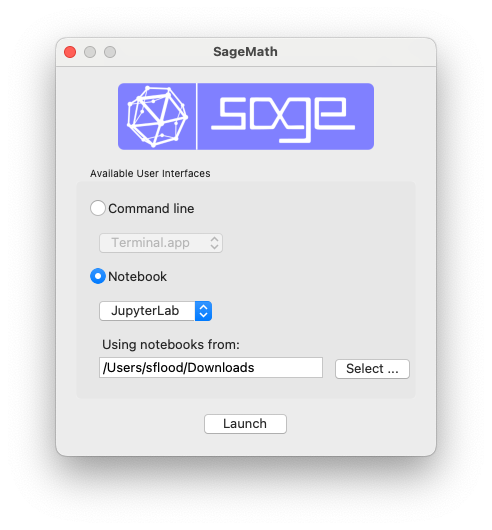
When Jupyter opens, you will see your a user directory.
- macOS, this will be the directory you selected.
You can open an existing notebook (with a .ipynb extension), or you can create a new one.
-
Use a Sage kernel to run Sage code.
-
Use a Python kernel to run pure Python code.
Windows: Running Sage
-
Open the
Ubuntuapplication, then runconda activate sage jupyter lab --NotebookApp.token='Risheequai3diuGhaiMuano4EeCh7geB' -
In a web browser, open the following address:
http://localhost:8888/lab?token=Risheequai3diuGhaiMuano4EeCh7geB
When Jupyter opens, you will see your a user directory.
- Windows, this will be a hidden directory you cannot access.
You will need to download worksheets to a normal directory.
You can open an existing notebook (with a .ipynb extension), or you can create a new one.
-
Use a Sage kernel to run Sage code.
-
Use a Python kernel to run pure Python code.
Understanding Jupyter Lab
Home Screen
When you start Sage, you will see a screen with the word Jupyter at the top. Below, you will see a (possibly empty) folder with unfamiliar contents.
- Once you have created notebooks, you can open them by clicking on them here, and you can organize them into directories.
On the right side of the screen you will see several options:
-
New
-
Select Python 3 to run standard Python code
-
Select SageMath 10.7 to run Sage Math code
-
-
Upload a file from your local hard drive.
Inside a Notebook
-
File commands:
-
save file
-
download -- This is the only way to share worksheet files if you are using Windows.
-
-
Cell commands
-
insert blank cell
-
cut/copy/paste cell
-
run current cell
-
-
Runtime commands
-
stop execution
-
restart kernel
-
restart and run all cells
-
-
There is a Dropdown that lets you select code or markdown.
-
Code cells contain code that is executed when you click run
-
Markdown cells contain text that is nicely formatted when you click run
-
-
At the far right, you will see SageMath 10.7. This tells you the existing Kernel. You use a Sage kernel to run Sage code, and a Python kernel to run pure Python.
Production Quality Documents with Quarto
Installing Quarto
CoCalc
No additional steps are required - Quarto is already installed in the CoCalc terminal.
macOS: Installing Quarto
-
Go to the Quarto Download Page
-
Download the macOS file
-
Run the installer
Windows: Installing Quarto
-
In Jupyter, click on
File>New>Terminal -
In the Terminal, run the following command
wget -O /tmp/quarto.deb https://quarto.org/download/latest/quarto-linux-amd64.deb
sudo apt install /tmp/quarto.deb
Using Quarto
Quarto commands are run in the Terminal, and not in any Jupyter Worksheet.
The most convenient workflow is to open the worksheet and the terminal at the same time.
CoCalc: Preparing your Screen
First, open the Worksheet (.ipynb file)
Next, split the screen. At the top right, click the picture of one box on top of another box
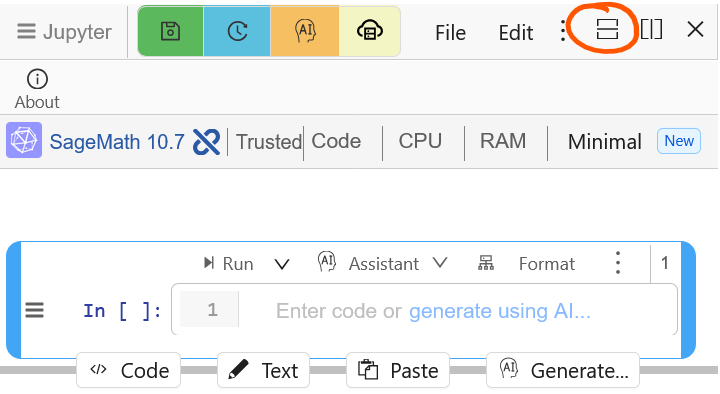
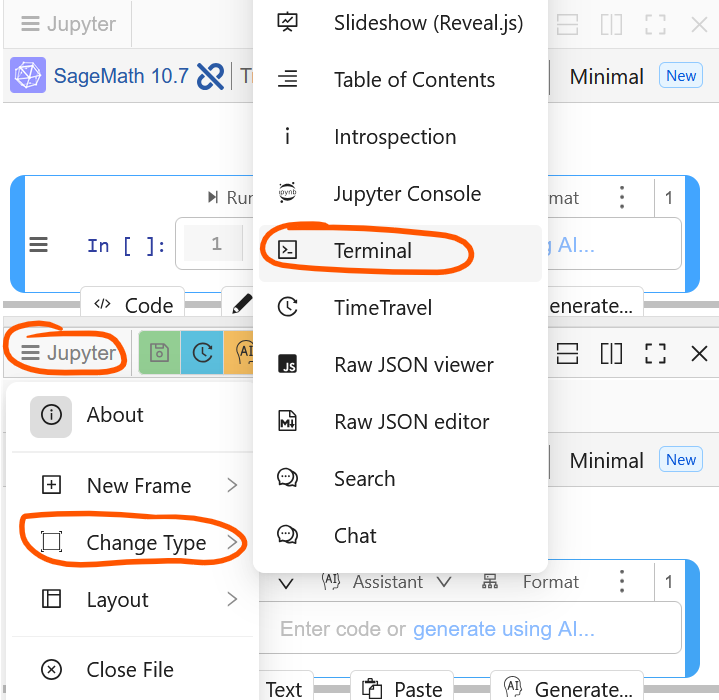
Finally, change the bottom screen to a Terminal. In the bottom screen that opened, click on the words Jupyter on the left side of the screen, then click Change Type, then click Terminal
macOS: Preparing your Screen
Make sure you are running Jupyter Lab. This will happen as long as you select JupyterLab (as opposed to Jupyter Notebook) in the launcher screen.
First, open the Worksheet (.ipynb file)
Next, Open a Terminal by
-
Click on the
Filemenu -
Click
New -
Click
Terminal
Finally,
- Drag the terminal tab into the bottom half of the main work area
- drop it when the blue highlight appears
Windows: Preparing your Screen
Make sure you are running Jupyter Lab. This will happen if you open Jupyter using the following commands
conda activate sage
jupyter lab
First, open the Worksheet (.ipynb file)
Next, Open a Terminal by
-
Click on the
Filemenu -
Click
New -
Click
Terminal
Finally,
- Drag the terminal tab into the bottom half of the main work area
- drop it when the blue highlight appears
Once you have set up your Jupyter Lab interface,
you can convert your file into many different output formats
using variations of the command quarto render filename.ipynb
Turn a Worksheet into a Word File
Make sure you have two screens open:
- The Notebook
filename.ipynbto be compiled (top of screen) - The Terminal (bottom of screen)
Inside the terminal, run the following command. It
quarto render filename.ipynb --to docx
- Asks
quartotorenderthe worksheetfilename.ipynb - and to convert it
tothedocxformat
To download your file
- Look at the directory listing
- You should see
filename.docx - Right click and download
Set Document Metadata
Other output formats like slides and html require additional parameters.
- Create a new cell at the top of your notebook
- Change the Type of your cell from
CodetoRaw
Copy/paste the following into the cell
---
execute:
    echo: false
format:
    html:
        embed-resources: true
        self-contained-math: true
    revealjs:
        embed-resources: true
        self-contained-math: true
---
By default, Quarto prints both the contents of your code cells and their output.
echo: false overrides this behavior, printing only the output.
If you want to print the code contents, set echo: true instead.
Turn a Worksheet into a Slideshow
First, complete the steps in "Set Document Metadata"
Then make sure you have two screens open:
- The Notebook
filename.ipynbto be compiled (top of screen) - The Terminal (bottom of screen)
Inside the terminal, run the following command. It
quarto render filename.ipynb --to revealjs
Turn a Worksheet into a Webpage
First, complete the steps in "Set Document Metadata"
Then make sure you have two screens open:
- The Notebook
filename.ipynbto be compiled (top of screen) - The Terminal (bottom of screen)
Inside the terminal, run the following command. It
quarto render filename.ipynb --to html